


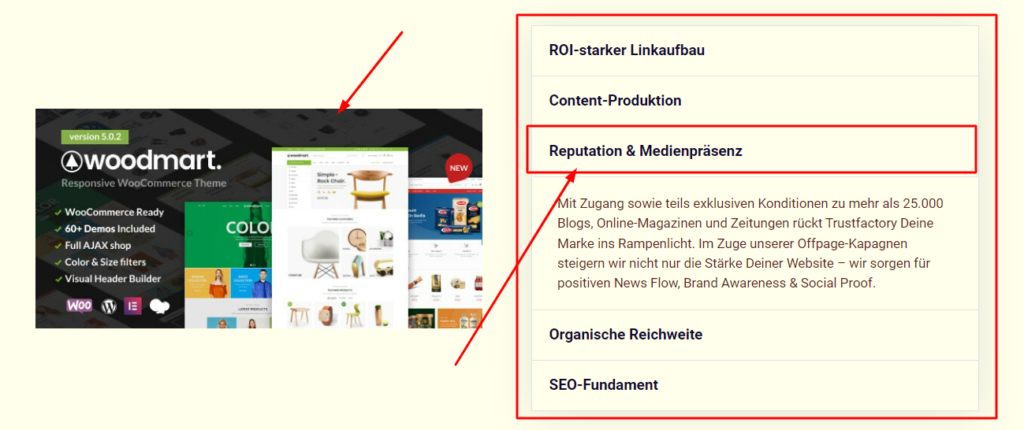
Letting visitors click a piece of text to swap an image makes your page interactive and engaging. In this tutorial you will build that effect in Elementor using a small amount of JavaScript. Copy the code, match the ids, and your images will change on click.
Initial Image Show/Hide CSS
- selector .all-img{
- display: none;
- }
- selector .img-1{
- display: block;
- }
Text Data Attribute
- data-showme|img-1
Dynamic Image Hide/Show JS
- <script src=“https://code.jquery.com/jquery-3.6.0.min.js”></script>
- <script>
- var $ = jQuery
- $(document).ready(function(){
- $(‘[data-showme]’).hover( function(){
- event.preventDefault();
- var showme = $(this).attr(‘data-showme’)
- $(‘.all-img’).hide()
- $(‘.’ + showme).show()
- })
- })
- </script>
How it works
Each clickable text item is linked to a target image by a shared id or data value. A short script listens for clicks on the text and updates which image is shown. Because the logic is simple, it runs instantly and works alongside the rest of your Elementor layout.
Tips and customization
- Add as many text and image pairs as you need.
- Highlight the active text item with a CSS class for clarity.
- Add a fade transition so the image change feels smooth.
FAQ
Does this require a plugin?
No. A small custom script in an HTML widget is all you need.
Can I use it on mobile?
Yes. Clicks work as taps on touch devices.