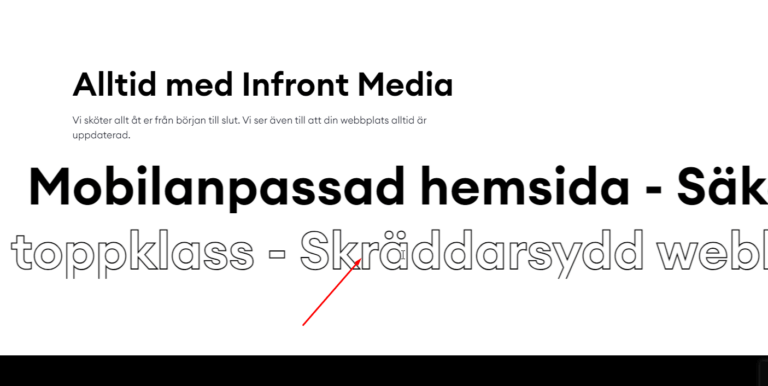


A highlight behind key words in a heading draws attention and adds personality to your titles. This guide shows how to create a highlight heading in Elementor with a custom code snippet. Copy it and make your important words stand out.
Learn how to create a stylish Highlight Heading in Elementor using a simple custom code snippet. In this tutorial, I’ll walk you through each step so you can add eye-catching, on-brand highlighted titles to any section of your WordPress site.
1. Add this to the Elementor Heading Widget:
Kostenfreies <span class="highlight">Videokonzept</span> erhalten2. Add this Custom CSS in Elementor (Advanced → Custom CSS)
.highlight {
    position: relative;
    display: inline-block;
    background: linear-gradient(to right, #F5C324 100%, #F5C324 100%);
    background-size: 100% 0.3em;
    background-position: 0 100%;
    background-repeat: no-repeat;
    padding-bottom: 3px;
}
Why This Works:
✅ Uses background gradient instead of ::before, which is more reliable in Elementor.
✅ The background-size: 100% 0.3em; ensures the yellow highlight covers the text width.
✅ The padding-bottom: 3px; aligns the highlight under the text properly.
Now the yellow highlight should 100% show up in Elementor! 🎨✨
How it works
The highlighted words are wrapped so a colored background or underline sits behind them, styled with CSS. You can make the highlight a solid block, a soft marker, or an animated sweep. Because the text stays real, it remains readable and accessible.
Tips and customization
- Choose a highlight color that contrasts with the text.
- Try a marker style with rounded edges.
- Animate the highlight to sweep in on scroll.
FAQ
Does it affect SEO?
No. The heading stays real text, so search engines read it normally.
Do I need Elementor Pro?
No. The styling works on the free version through custom CSS.
Ready to make it work?
I can help turn the idea into a reliable WordPress experience.
Start a conversation ↗