


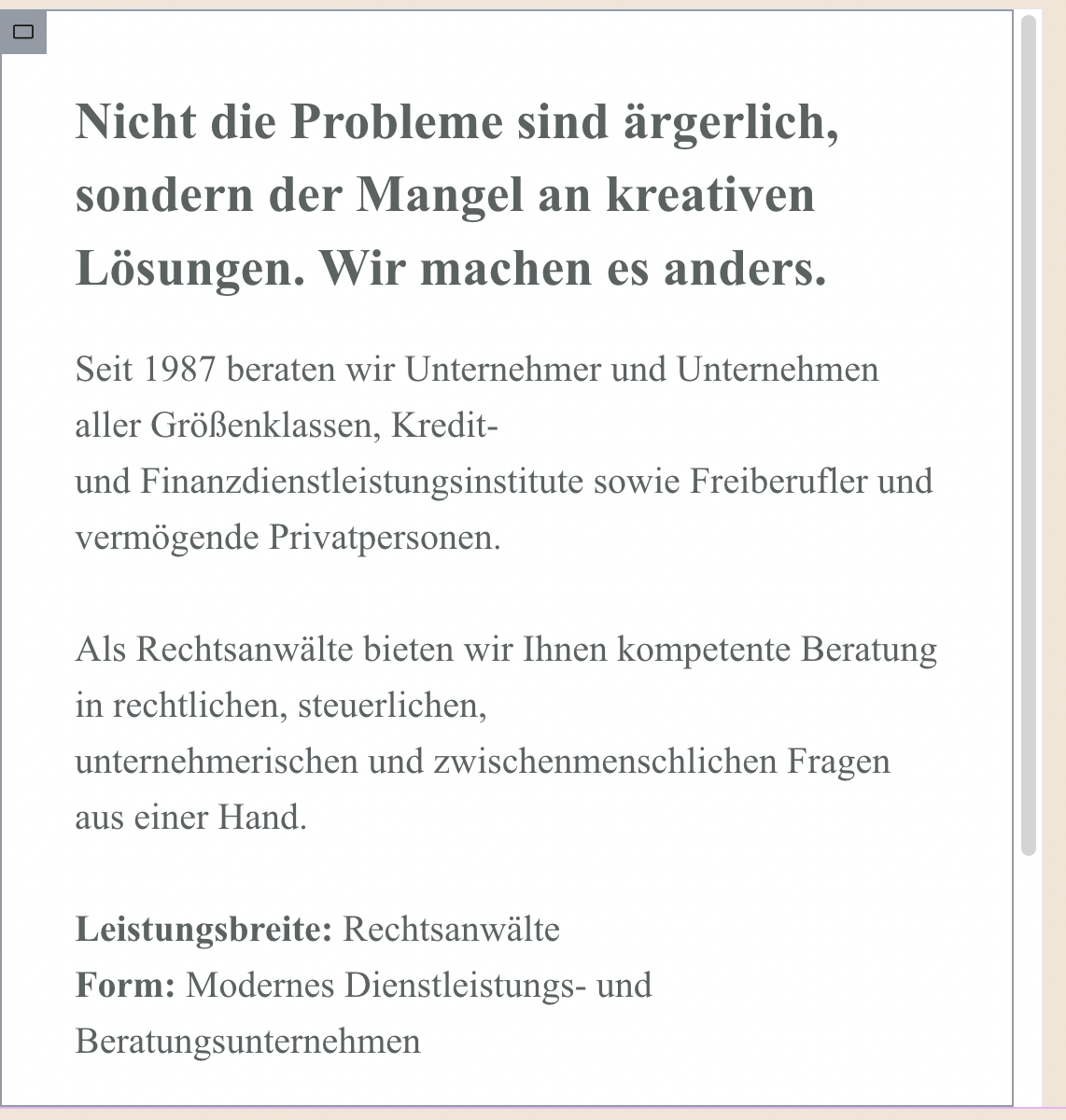
A styled scrollbar is a small detail that makes a design feel finished and cohesive. This guide shows how to add a custom scrollbar to any Elementor container with simple CSS. Copy the code, match your colors, and refine the look.
Give your Elementor layouts a little extra polish with a custom scrollbar just for this container. Instead of the default browser look, this CSS lets you style the scrollbar to better match your site’s colors and design, creating a more seamless experience for your visitors. It’s lightweight, easy to drop into your Elementor container’s Custom CSS (or your theme’s stylesheet), and works great for sections with overflowing content. Below is the exact code I’m using to transform the standard scrollbar into a clean, modern UI detail.
Add this Custom CSS in Elementor (Advanced → Custom CSS)
					@media(min-width:1023px){
    .Mcsb {
    max-height: 590px;
    overflow-y: auto !important;
    scrollbar-width: 10px;
    scrollbar-color: #D9D9D9 #fff;
    column-gap: 40px;
}
.Mcsb::-webkit-scrollbar {
    width: 10px;
}

.Mcsb::-webkit-scrollbar-thumb {
    background: #aaa;
    border-radius: 3px;
}

.Mcsb::-webkit-scrollbar-track {
    background: #ffff;
}
}
How it works
CSS scrollbar properties let you restyle the track and the draggable thumb, changing their width, color, and roundness. You apply the styles to the container so only that scroll area is affected. Because it is pure CSS, it adds no scripts and no weight.
Tips and customization
- Match the thumb color to your accent color.
- Round the thumb for a softer look.
- Keep enough contrast so the scrollbar stays visible.
FAQ
Does it work in all browsers?
Modern browsers support custom scrollbar styling. Others simply show the default scrollbar.
Does it need a plugin?
No. A few CSS lines are all it takes.